Linux File Ownership and Permissions
As a multiuser OS, Linux provides tools to secure your files from other users: file ownership and permissions.
- security model of Linux assumes presence of multiple users
- every file has an associated owner and group
- 3 sets of permissions define what a file’s owner and group can do with it
- programs (processes) also have ownership
- by the user that started it
Ownership
- every file is associated with a UID (user) and GID (group)
rootcan change any file
Setting Ownership
- File Manager
- to change a file’s owner, must run Files as
root, but can change its group to any group you belong to- launch a terminal window
suto acquire root privileges- type
nautilusto launch GNOME Files - locate and right-click file
- select
Properties - click
Permissionstab - select a new owner in the
Ownerfield - to change group, select a new group in
Groupfield - Close
- to change a file’s owner, must run Files as
- Shell
chowncommand to change ownership- e.g.,
chown rich targetfile.odf - can change both owner and group by separating with colon
- e.g.,
chown bob:users targetfile.odf
- e.g.,
- to change group and not owner, omit owner
- e.g.,
chown :users targetfile.odf
- e.g.,
- e.g.,
chgrpcommand changes only the group- e.g.,
chgrp users targetfile.odf
- e.g.,
-R(--recursive) option applies to all files within a directory tree
Permissions
The ls -l command shows a long directory listing of file permissions, owner, and group.
$ ls -l test
-rwxr-xr-x 1 rich users 111 Oct 13 13:48 test- columns show:
- permissions
- number of hard links
- username
- group
- file size
- time stamp of last modified
- filename
Symbolic Permissions
The first string is a symbolic representation of a file’s permissions.
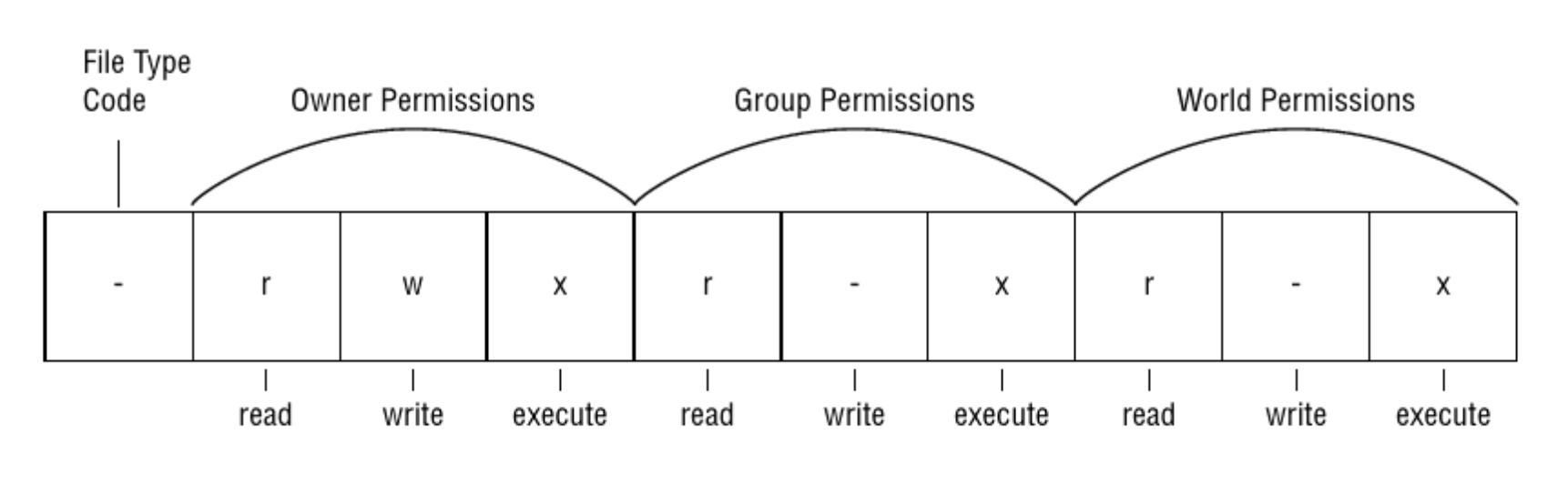
File Type Codes
Code Name Meaning -Normal data file May be text, executable program, graphics, compressed data, or almost any type of data dDirectry Disk directories are files, but contain filenames and pointers to those named files’ data structures lSymbolic link The symbolic link file contains the name of another file or directory. Linux reads the linked-to file. pNamed pipe A pipe enables two running Linux programs to communicate with each other in a one-way fashion sSocket A socket is similar to a named pipe, but it permits network and bidirectional links bBlock device A block device file that corresponds to a hardware device to and from which data is transferred in blocks of more than one byte. Disk drives are common block devices cCharacter device A character device file that corresponds to a hardware device to and from which data is transferred in units of one byte. E.t., parallel and RS-32 serial port devices
- owner permissions determine what the file’s owner can do with the file
- group permissions determine what the members of a file’s group can do with the file
- world permissions determine what users who aren’t the file’s owner or members of its group can do with the file
Octal Permissions
Permissions can be read as base 8 (0-7) set of numbers.
- 3 digits for owner, group, world
- each value is R, W, X is represented by a number
4= read permissions2= write permissions1= execute permissions
- multiple permissions are added together
- e.g.,
rw-=4 + 2 = 6
- e.g.,
Common Permissions
Permission string Octal code Meaning rwxrwxrwx777Read, write, execute permissions for all users rwxr-xr-x755Read and execute for all users. Write for owner. rwxr-x---750Read and execute for owner and group. None for world. rwx------700Read, write, and execute for owner. No access for group and world. rw-rw-rw-666Read and write for owner, group, and world. No execute for anyone. rw-rw-r--664Read and write for owner and group. Read-only for world. rw-rw----660Read and write for owner and group. No world access. rw-r--r--644Read and write for owner. Read-only for group and world. rw-r-----640Read and write for owner. Read for group. None for world. rw-------600Read and write for owner. None for group and world. r--------400Read-only for owner. None for group and world.
Special Cases
- Directory Execute Bits
- Directories use the execute bit to gran permission to enter the directory and access files
- Even if you have
readpermission, you needexecuteon the directory to access the file - typically will always have the
xbit set whenris set
- Directory Write Permissions
- directories are files that are interpreted in a special way
- if a user can write to a directory, they can create, delete, or rename files in the directory
- even if user is not owner and does not have permission to write to those files
- Symbolic Links
- permissions on symbolic links are always
777 - access applies only to the link file itself
- not linked-to file
- permissions on symbolic links are always
root- superuser can read or write to any file on the computer
- even
000files
- even
- still needs
xbit to run a program file
- superuser can read or write to any file on the computer
Setting Permissions
- Via File Manager GUI
- similar to changing the owner
- Owner item has 2 options:
- Read-Only
- Read and Write
- Group and Other items have 3 options:
- Read-Only
- Read and Write
- None
- Execute permission is set differently
- check
Allow Executing File As Program Box - sets execute on all permission bits
- check
- Shell
chmodcan be used to change permissions- can set permission in octal number or symbolic form
- e.g., to change permissions to
rw-r--r--chmod 644 report.txt
- symbolic form uses 3 components:
- code indicated the permission set to modify
ufor user,gfor group,ofor other user
- symbol indicating whether to add or delete or set equal to a value
+for add,-for delete,=for equal to
- code specifying the permission
rfor read,wfor write,xfor execute
- code indicated the permission set to modify
chmodSymbolic Form Permission Examples
chmod a+x bigprogramchmod ug=rw report.txtchmod o-rwx bigprogramchmod g-w,o-rw report.txt
Setting the Umask
The user mask (umask) determines the default permission for new files and directories.
- umask is the value that is removed from:
666(rw-rw-rw-) permissions when creating new files777(rwxrwxrwx) permission when creating new directories
- e.g., if umask is
022- new files will be created with
644permissions - new directories will be created with
755permissions
- new files will be created with
- can adjust umask with
umaskcommand- e.g.,
umask 022 - command typically appears in system configuration file such as
/etc/profileor in a user configuration file such as~/.bashrc
- e.g.,
Using Special Permission Bits and File Features
Sticky Bits
- when a sticky bit is set on a directory, Linux will permit deleting the file only if you own it or the directory containing it
- By default, a user needs
writepermission to the directory containing a file in order to delete it- even if user has no access to the file itself
- sticky bit helps further protect files from deletion
- Can set sticky bit with
chownin two ways:- using octal code
- add
1in front of the permissions - e.g.,
chown 1755 chown 0755removes the sticky bit
- add
- using symbolic code
- use the symbolic code
tfor the world permissions - e.g.,
chmod o+t subdiradds sticky bitchmod o-t subdirremoves the sticky bit
- use the symbolic code
- using octal code
- to identify the status of sticky bit
- the execute bit is shown as a
tin the world category if it is on - e.g.,
- the execute bit is shown as a
$ ls -l
total 0
drwxrwxrwt 2 root root 80 Oct 14 18:25 subdir- sticky bit is important for directories shared by many users
- standard feature on
/tmpand/var/tmp
Special Execute Permissions
- some programs need to be run with
rootprivileges even when run by ordinary users - to accomplish this, two special permission bits exist:
- Set User ID (SUID)
- tells Linux to run the program with the permissions of whoever owns the file
- rather than of the user who runs the program
- SUID programs are indicated by an
sbit in the owner’s execute position- i.e.,
rwsr-xr-x
- i.e.,
- tells Linux to run the program with the permissions of whoever owns the file
- Set Group ID (SGID)
- sets the group of the running program to the group of the file
- indicated by an
sin the group execute bit position- i.e.,
rwxr-sr-x
- i.e.,
- when set on a directory, SGID option ensures that all files in the directory are set to the group of the directory instead of user who created the file
- Set User ID (SUID)
- use
chmodto set the bits:- Octal Code
- set leading value to 4 to set SUID bit
- set leading value to 2 to set SGID bit
- set leading value to 6 for both
- e.g.,
chmod 4755
- Symbolic Code
- use with
uto specify the SUID bit - use with
gto specify the SGID bit - use both to set both bits
- e.g.,
chmod u+s myprogramsets SUID bitchmod ug-s my programremoves SUID and SGID bit
- use with
- Octal Code
- normally don’t have to set these bits manually
- package manager will set correctly when it installs or upgrades a program
Hiding Files From View
- to hide a file, put a
.as the first character in the filename- e.g.,
.file.txt
- e.g.,
- view hidden files with
ls -aoption