Configuring Windows
Goals
- Configure Windows user settings
- Configure Windows system settings
Windows Interfaces
An OS is made up of kernel files and device drivers to interface with the hardware plus programs to provide a user interface and configuration tools.
One of the main functions of an OS is to provide an interface (or shell) for the user to configure and operate the computer hardware and software
2 Interfaces for Administering Windows
Configuring an OS
Administering an OS means configuring options, setting up user accounts, and adding and removing devices and software
- All Windows configuration data is ultimately held in a database called the registry
- Windows Settings and Control Panel are GUIs and applets for modifying these configuration settings
2 Types of Settings for Configuring Windows
File Explorer
File Explorer enables you to open, copy, move, rename, view, and delete files and folders.
System Objects
In Windows, access to data files is typically mediated by system objects.
- shown in left-hand navigation pane in File Explorer
Main system objects:
- User account
- Contains personal data folders belonging to the signed-in account profile
- the user folder
- OneDrive
- If you sign into the computer with a Microsoft account, this shows the files and folders saved to your cloud storage service on the Internet.
- This PC
- Contains the personal folders from the profile and also the fixed disks and removable storage drives attached to the PC
- Network
- Contains computers, shared folders, and shared printers available over the network
- Recycle Bin
- Provides an option for recovering files and folders that have been marked for deletion
Drives and Folders
- System objects represent logical storage areas, the actual data files are written to disk drives
- drives are referred to by letters and optional labels
- A “drive” can be a:
- single physical disk or a partition on a disk
- shared network folder mapped to a drive letter
- removable disk
- By convention:
A:drive = floppy diskC:drive = partition on the primary fixed disk holding the Windows installation
- A “drive” can be a:
- every drive contains a directory called the root directory
- represented by
\(backslash)
- represented by
- Each directory contains subdirectories (folders) and files
System Files
System files are the files that are required for the operating system to function.
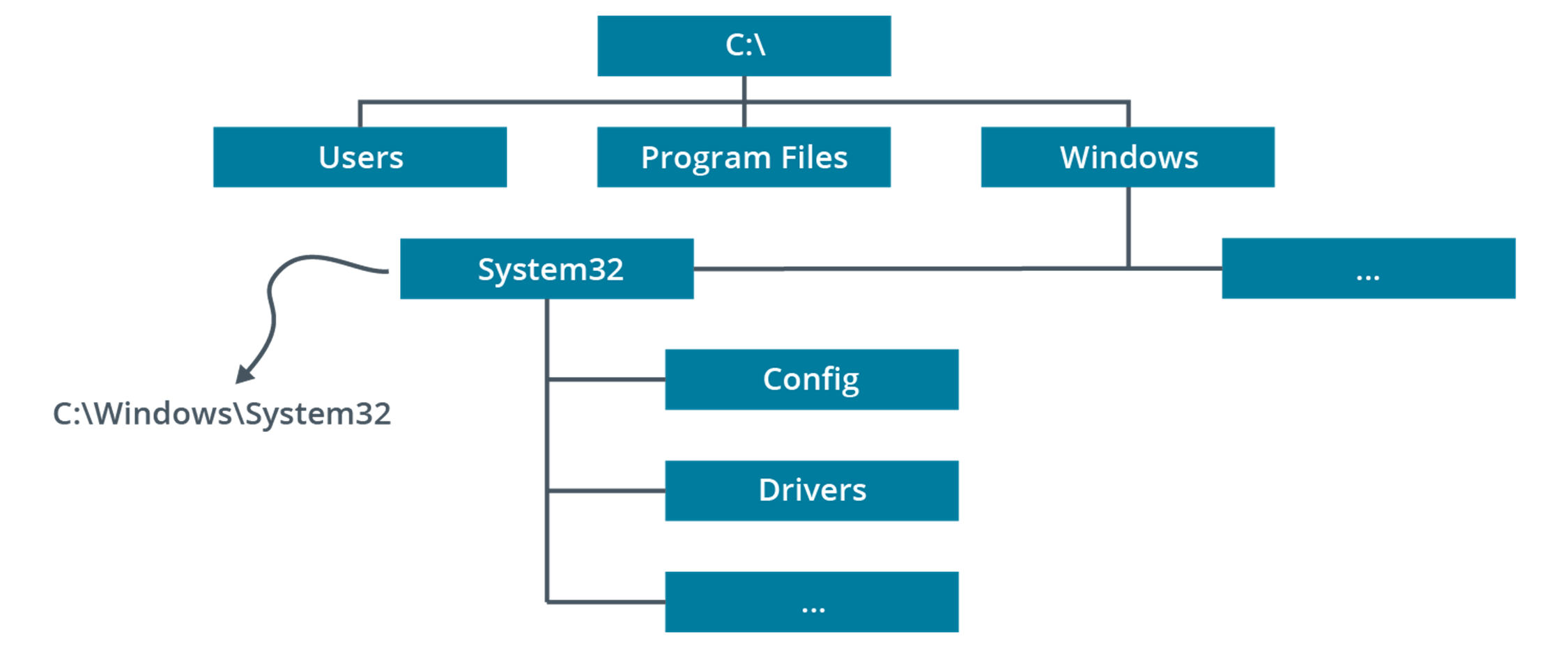
Typical Windows installation root directory structure:
- Windows: The system root, containing drivers, logs, add-in applications, system and configuration files (notably the System32 subdirectory), fonts, and so on.
- Program Files/Program Files (x86): Subdirectories for installed applications software.
- In 64-bit versions of Windows, a Program Files (x86) folder is created to store 32-bit applications
- Users: Storage for users’ profile settings and data
- Each user has a folder named after their user account
- This subfolder contains
NTUSER.DAT(registry data) plus subfolders for personal data files - contains hidden subfolders used to store application settings, favorite links, shortcuts, and temporary files
File Explorer Options and Indexing Options
File Explorer has configurable options for view settings and file search.
File Explorer Options
The File Explorer Options applet in Control Panel governs how Explorer shows folders and files.
- General Tab
- set layout of Explorer windows
- switch between single-click and double-click styles of opening shortcuts
- View Tab
- Hide extensions for known file types
- Hidden files and folders
- Hide protected operating system files
Indexing Options
Configure file search behavior on the Search tab of the File Explorer Options dialog.
- also governed by settings in Indexing Options applet
- allows you to define indexed locations and rebuild the index
- indexed locations can include folders and email data stores
- a corrupted index is a common cause of search problems